Fix Wi-Fi Connection Issues
Printer Not Connecting to Wi-Fi? Here's How to Fix It
Can't find your Wi-Fi network, or is your password not working? This free guide walks through the most common causes of printer Wi-Fi problems, in the order most likely to fix things fastest.
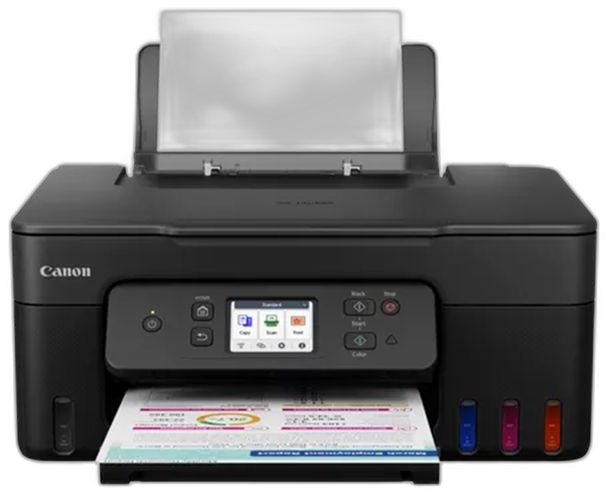
Troubleshooting steps
Confirm the printer and computer are on the same network
A printer connected to one Wi-Fi network can't be found by a computer or phone connected to a different one — including a guest network, or a phone that's still on mobile data instead of Wi-Fi.
On the printer's network settings screen, check the network name it's connected to and compare it to the Wi-Fi name shown on your computer or phone.
Printer shows "offline" in Windows or Mac
This usually means the computer has lost track of the printer's current network address, even though the printer itself is on and connected.
- Windows: Settings > Bluetooth & devices > Printers & scanners, click the printer, then "Open print queue" and clear any stuck jobs
- Mac: System Settings > Printers & Scanners, remove the printer with the minus (–) button, then re-add it with the plus (+) button
- Restart both the printer and the router if the problem continues
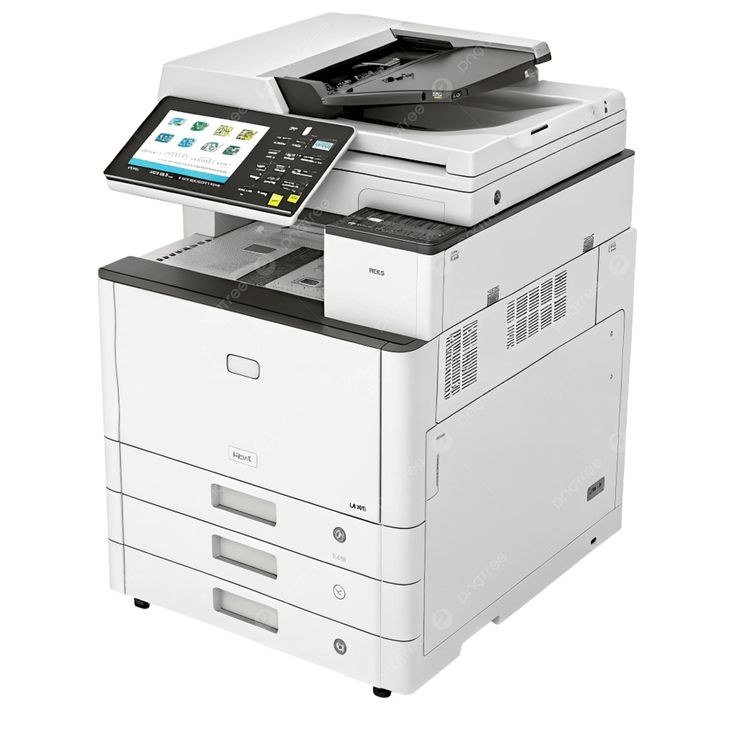
Router password changed or network renamed
If you've recently updated your router or changed its Wi-Fi password, the printer will need to be reconnected using the new details — it doesn't update automatically.
Run the wireless setup wizard again from the printer's screen, select the current network name from the list, and enter the new password.

Printer can't find your Wi-Fi network at all
Move the printer closer to the router temporarily to rule out a weak signal, and make sure the network isn't hidden (some routers let you hide the network name, which stops printers from finding it automatically).
- Confirm the router is broadcasting on 2.4GHz — many printers can't see 5GHz-only networks
- Temporarily disable any 5GHz-only "guest" network and test on the main network
- Check the printer isn't in airplane or offline mode, if it has one

Still not connecting? Try a full reset
As a last step, reset the printer's network settings from its menu (usually under Settings > Network > Restore Network Settings) and repeat the wireless setup from scratch.
Wi-Fi troubleshooting FAQ
Why does my printer keep disconnecting from Wi-Fi?
My printer connects to Wi-Fi but still won't print. What now?
Do I need my router password to reconnect a printer?
Setting up a printer for the first time?
Start with our complete setup guide, which covers both Wi-Fi and USB connections from the beginning.