Windows & Mac Setup Guide
Printer Driver Installation Guide
Get the correct driver installed and recognized by Windows or macOS. Follow the section that matches your operating system below.
Windows
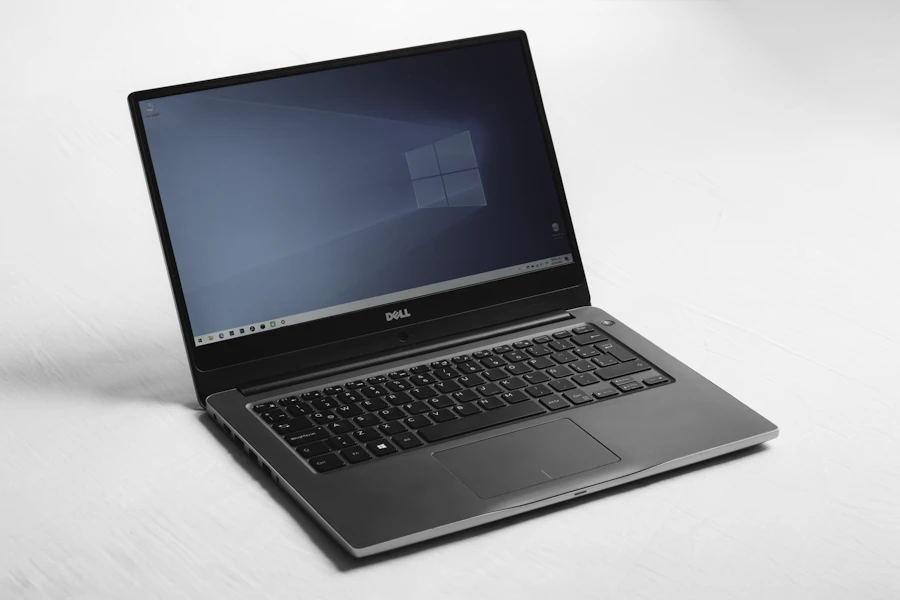
Open Printers & Scanners
Go to Settings > Bluetooth & devices > Printers & scanners.
Add your printer
Select "Add device" and wait for your printer to appear in the list, then choose it. Windows will try to install a matching driver automatically.
Use Windows Update if it's not found
If your printer doesn't appear, open Settings > Windows Update > Advanced options > Optional updates, and check for a driver update listed under "Driver updates."
Restart the print spooler if installs get stuck
Open the Services app, find "Print Spooler," right-click and choose Restart. This clears a common cause of installs that hang or fail partway through.
macOS
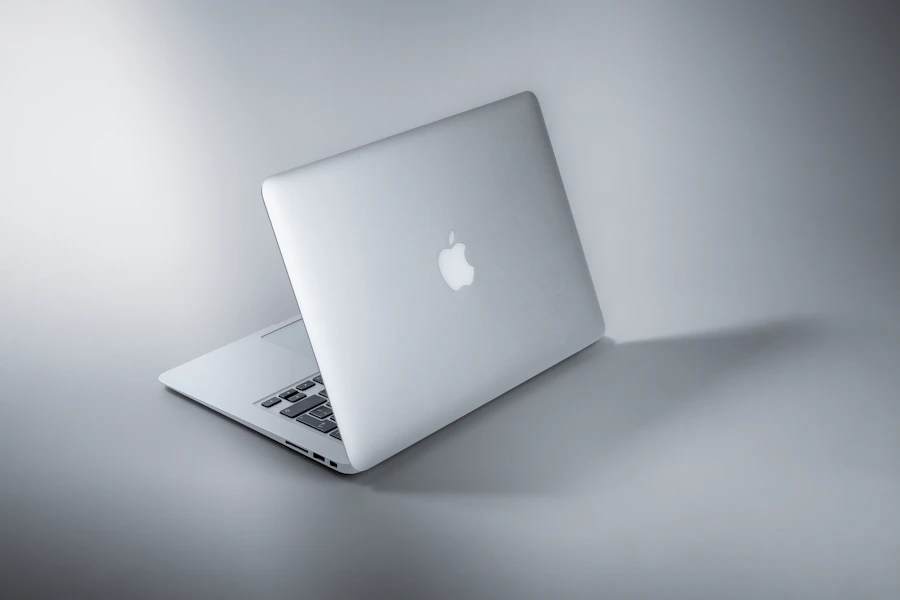
Open Printers & Scanners
Go to System Settings > Printers & Scanners.
Add your printer
Click the plus (+) button, select your printer from the list, and confirm the "Use" driver shown is correct — macOS usually selects the right one automatically via AirPrint or a bundled driver.
Install additional software if prompted
If macOS prompts to install additional software for your printer, allow it — this adds manufacturer-specific features like ink-level reporting.
Reset the printing system if problems continue
Control-click your printer list and choose "Reset printing system." This removes all printers and lets you re-add them cleanly, which resolves most persistent driver conflicts.
Driver FAQ
Do I need to download anything from a third-party website?
My printer worked before an OS update, then stopped. What changed?
Can I install a printer driver without an internet connection?
Driver installed but printer still offline?
That's usually a network issue, not a driver one — check our Wi-Fi troubleshooting guide next.